Attendance Sheet in Excel: Managing attendance manually in registers or notebooks is outdated in today’s digital work and education environment. Organizations, schools, and small businesses are increasingly shifting toward automated Excel systems to track attendance efficiently.
An Attendance Sheet in Excel helps record daily presence, absence, leave, and working days automatically with formulas. Instead of calculating attendance manually every month, Excel formulas can instantly generate totals, percentages, and visual dashboards.
Whether you are a business owner managing employee attendance or a teacher tracking student attendance, a well-designed Excel sheet can save hours of work and eliminate human errors.
In this comprehensive guide, you will learn:
- How to use an Attendance Sheet in Excel with Formula
- How to track employees and students using automated templates
- How attendance is calculated automatically in Excel
- How to download a fully automated attendance sheet in Excel free download version
- How to build your own excel attendance sheet template
This post is written from the perspective of an excel spreadsheet expert, so you will also understand the logic behind the formulas used.
Fully Automated Attendance Sheet in Excel Free Download
To make things easier, I have created a premium professional attendance sheet with automatic formulas and dashboard charts.
📄Download Attendance Sheet in Excel Free
The above excel sheet includes:
Premium Features
- Fully automated formulas
- Employee & student versions
- Monthly attendance tracker
- Automatic present/absent calculations
- Attendance percentage calculation
- Conditional formatting
- Graph-based dashboard
- Error-free formulas
- Clean professional layout
Use all the above listed features and share your experience with us in the below comment section.
Also Check: GST Tax Invoice Format in Excel Download
How to Use the Excel Attendance Sheet? (Step-by-Step)
Using the template is very simple.
Step 1: Enter Employee or Student Details
Fill in:
- Name
- ID number
- Department or class
Step 2: Mark Daily Attendance
In the daily columns, enter:
P = Present
A = Absent
L = Leave
H = Holiday
Step 3: Automatic Calculations
The sheet automatically calculates:
- Present days
- Absents
- Leaves
- Attendance percentage
Step 4: Check Monthly Dashboard
The visual dashboard automatically displays:
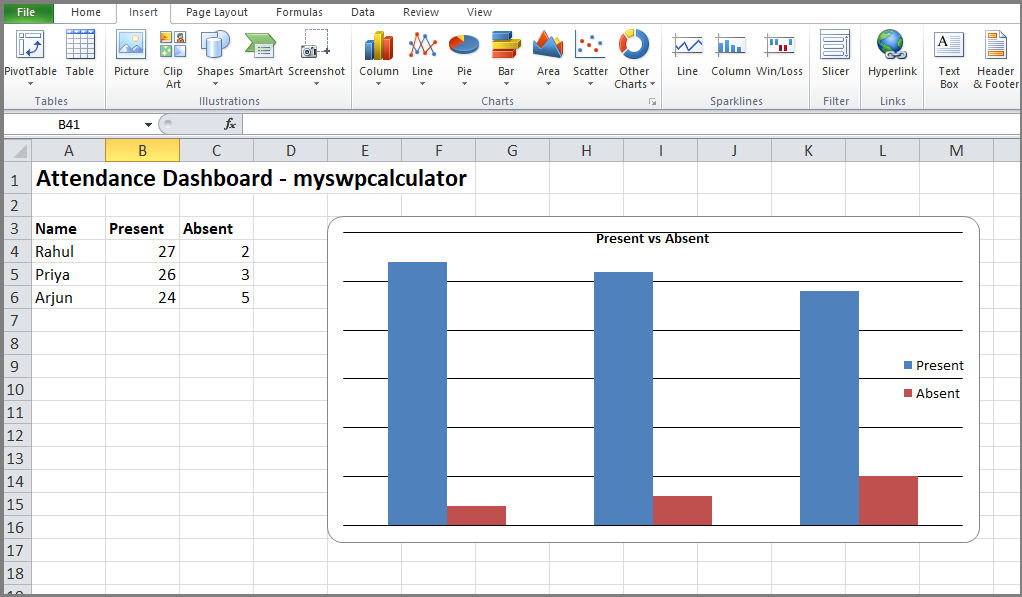
- Attendance trend chart
- Present vs absent comparison
- Overall attendance percentage
Step 5: Generate Reports
You can use the sheet to:
- Export reports
- Track monthly attendance
- Monitor performance
This makes the template a fully automated attendance sheet in Excel.
What is an Attendance Sheet in Excel?
An Attendance Sheet in Excel is a structured spreadsheet designed to record daily attendance data for employees or students across a specific period, usually a month. Instead of writing attendance manually, Excel allows you to track attendance using codes like:
- P – Present
- A – Absent
- L – Leave
- H – Holiday
- W – Weekend
Excel formulas automatically count these values and calculate totals such as working days, present days, and attendance percentage. Businesses commonly use an Employee Attendance Sheet in Excel to track staff working days, while schools use a Student Attendance Sheet in Excel to monitor student attendance.
Benefits of Using an Excel Attendance Sheet
Using an automated Excel system offers several advantages.
1. Saves Time: Excel formulas automatically calculate attendance totals and percentages.
2. Reduces Human Errors: Manual calculations often lead to mistakes. Automated formulas ensure accuracy.
3. Easy Monthly Tracking: Monthly attendance reports are generated automatically.
4. Customizable for Any Organization: You can use the same excel attendance sheet template for:
- Offices
- Factories
- Schools
- Colleges
- Small businesses
5. Visual Dashboard Insights: Modern Excel attendance sheets include graph dashboards showing attendance trends.
Structure of a Monthly Attendance Sheet in Excel
A professional Attendance Sheet in Excel with Formula usually contains the following sections.
| Section | Purpose |
| Employee/Student Information | Name, ID, Department/Class |
| Date Columns | Daily attendance marking |
| Attendance Status | P, A, L, H etc |
| Total Present Days | Auto-calculated |
| Total Absents | Auto-calculated |
| Leave Count | Auto-calculated |
| Attendance Percentage | Performance indicator |
| Monthly Dashboard | Visual attendance chart |
This structure ensures a fully automated attendance sheet in Excel.
Employee Attendance Sheet in Excel
An Employee Attendance Sheet in Excel helps HR departments monitor staff attendance efficiently.
Typical columns include:
- Employee Name
- Employee ID
- Department
- Date-wise attendance
- Total working days
- Present days
- Absents
- Leaves
HR Use Cases
Companies use this sheet for:
- Payroll calculations
- Leave tracking
- Productivity monitoring
- Workforce reporting
Many organizations use Excel attendance systems before upgrading to advanced HR software.
Student Attendance Sheet in Excel
A Student Attendance Sheet in Excel is widely used by schools and colleges to monitor student attendance.
Teachers can track:
- Daily attendance
- Monthly attendance percentage
- Absence patterns
- Class attendance reports
Example Classroom Use
| Student Name | Total Classes | Present | Absent | Attendance % |
|---|---|---|---|---|
| Rahul | 26 | 24 | 2 | 92% |
| Priya | 26 | 23 | 3 | 88% |
| Arjun | 26 | 25 | 1 | 96% |
This helps teachers quickly identify students with low attendance.
Excel Formulas Used in Attendance Sheets
A fully automated attendance sheet in Excel free download works because of Excel formulas.
Here are the key formulas used.
COUNTIF Formula: Used to count attendance status.
Example: =COUNTIF(B2:AF2,”P”)
Counts how many days an employee was present.
Counting Absents
=COUNTIF(B2:AF2,”A”)
Counts absent days.
Leave Calculation
=COUNTIF(B2:AF2,”L”)
Counts leave days.
Total Working Days
=COUNTA(B2:AF2)
Counts all attendance entries.
Attendance Percentage
=(Present Days / Working Days)*100
These formulas allow Excel to calculate attendance automatically.
How to Make Attendance Sheet in Excel?
If you want to create your own template, follow these steps.
Step 1: Create Header Columns
Add columns for:
- Name
- ID
- Department/Class
- Dates (1–31)
Step 2: Create Attendance Codes
Define attendance codes such as:
P = Present
A = Absent
L = Leave
H = Holiday
Step 3: Apply Excel Formulas
Use: COUNTIF for attendance tracking.
Step 4: Add Conditional Formatting
Color codes improve readability.
- Green – Present
- Red – Absent
- Yellow – Leave
Step 5: Create Monthly Dashboard
Insert charts showing:
- Attendance percentage
- Absence trends
- Department/class comparison
This transforms a simple sheet into a professional excel attendance sheet template.
Tips to Manage Attendance Efficiently in Excel
From my experience working with Excel spreadsheets, here are some expert tips.
Use Data Validation
Restrict cells to allow only:
P, A, L, H.
This prevents entry mistakes.
Lock Formula Cells
Protect cells containing formulas to avoid accidental deletion.
Use Conditional Formatting
Color-coded attendance helps quickly analyze data.
Maintain Monthly Sheets
Create separate sheets for each month.
Backup Your File
Always maintain backup copies to prevent data loss.
FAQs on Attendance Sheet in Excel
1. What is the best attendance sheet in Excel?
The best attendance sheet includes:
- Automated formulas
- Monthly dashboard
- Attendance percentage calculation
- Error-free template structure
2. Can Excel automatically calculate attendance?
Yes. Using formulas like COUNTIF, Excel can automatically calculate:
- Present days
- Absents
- Leave days
- Attendance percentage
3. How do I calculate attendance in Excel?
Attendance is calculated using formulas such as:
COUNTIF for counting attendance status and percentage formulas.
4. Is there a free attendance sheet in Excel?
Yes, many fully automated attendance sheet in Excel free download templates are available that include formulas and dashboards.
5. Can Excel be used for employee attendance?
Yes, Many companies use an Employee Attendance Sheet in Excel to track staff attendance before implementing HR software.
Final Thoughts
A well-designed Attendance Sheet in Excel is one of the most practical tools for tracking attendance in offices, schools, and organizations. Instead of relying on manual registers or complex software, Excel provides a powerful and flexible solution that can automate the entire attendance process. With the help of formulas like COUNTIF and automatic percentage calculations, a fully automated attendance sheet in Excel can instantly generate accurate attendance reports without any manual effort.
Whether you are managing a team of employees or tracking classroom attendance, using an Attendance Sheet in Excel with Formula ensures efficiency, transparency, and error-free reporting. The addition of visual dashboards and charts further enhances the usefulness of the template by allowing managers and teachers to quickly analyze attendance patterns.
By implementing a structured excel attendance sheet template, you can easily calculate attendance, monitor performance, and maintain organized monthly records. If you want a professional and ready-to-use solution, downloading a fully automated attendance sheet in Excel free download template with advanced formulas and dashboard features can save significant time and simplify attendance management for years to come.
I hope the above excel sheet will help you to track your attendance easily without any software. It will work automatically the formulas are used perfectly so no need to change anything. If you still have any questions please feel free to ask in the below comment section. Thanks for your visit and follow for more updates.
Tags: Attendance sheet in excel with formula, Employee attendance sheet in excel, student attendance sheet in excel, Fully automated attendance sheet in Excel free download, how to make attendance sheet in excel, how to calculate attendance excel, excel attendance sheet template.